> ## Documentation Index
> Fetch the complete documentation index at: https://dify-6c0370d8-release-1-15-0.mintlify.site/llms.txt
> Use this file to discover all available pages before exploring further.
# データソースプラグイン
> Dify 1.9.0 以降のデータソースプラグインを構築し、ナレッジパイプラインにドキュメントを供給する
> このドキュメントは AI によって自動翻訳されています。不正確な部分がある場合は、[英語版](/en/develop-plugin/dev-guides-and-walkthroughs/datasource-plugin) を参照してください。
データソースプラグインは Dify 1.9.0 で導入され、ナレッジパイプラインにドキュメントを供給する、パイプライン全体の起点です。
このガイドでは、データソースプラグインの構築とリリースに必要なプラグインアーキテクチャ、コード例、デバッグ方法を解説します。
## 前提条件
ナレッジパイプラインとプラグイン開発について基本的な理解が必要です:
* [ステップ2:ナレッジパイプラインオーケストレーション](/ja/cloud/use-dify/knowledge/knowledge-pipeline/knowledge-pipeline-orchestration)
* [Difyプラグイン開発:Hello Worldガイド](/ja/develop-plugin/dev-guides-and-walkthroughs/tool-plugin)
## データソースプラグインの種類
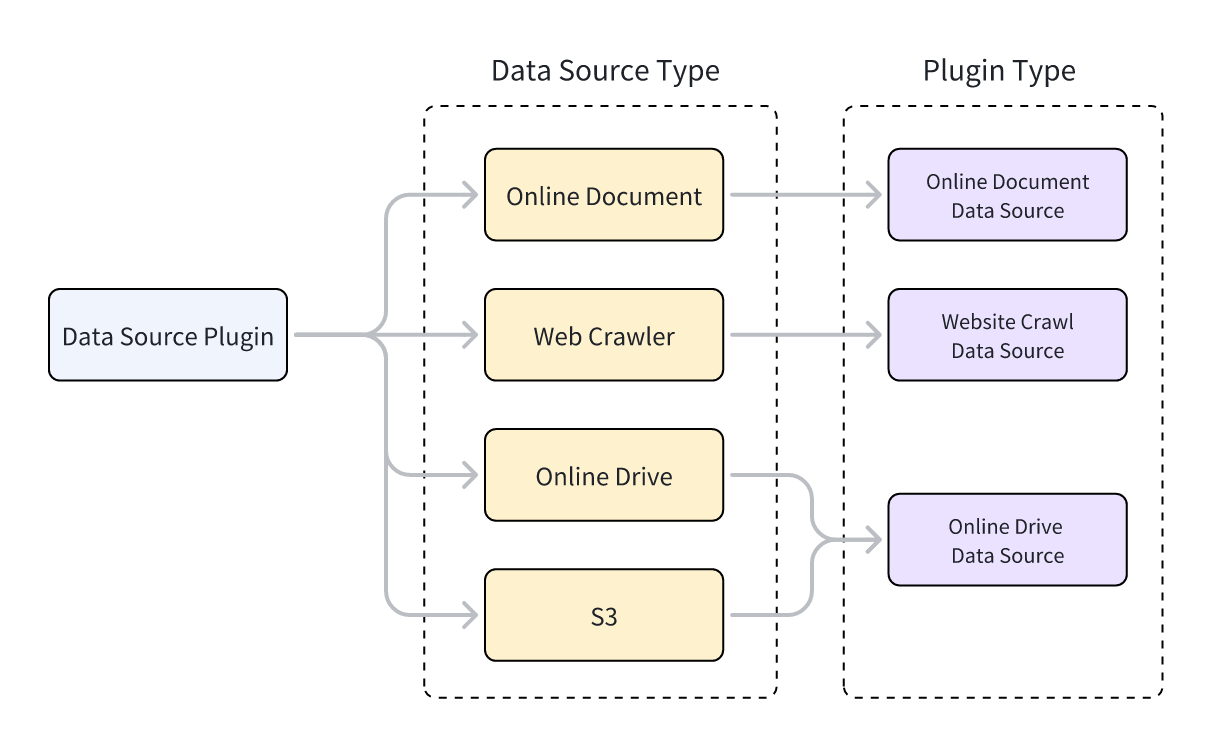
Dify は 3 種類のデータソースプラグインをサポートしています:Web クローラー、オンラインドキュメント、オンラインドライブ。各タイプは異なる親クラスに対応し、プラグイン機能を実装するクラスは対応する親クラスを継承する必要があります。
親クラスを継承してプラグイン機能を実装する方法については、[ツールプラグイン:ツールコードの準備](/ja/develop-plugin/dev-guides-and-walkthroughs/tool-plugin#4-ツールコードの記述) を参照してください。
各データソースプラグインタイプは複数のデータソースをサポートしています。例えば:
* **Web クローラー**:Jina Reader、FireCrawl
* **オンラインドキュメント**:Notion、Confluence、GitHub
* **オンラインドライブ**:OneDrive、Google Drive、Box、AWS S3、Tencent COS
データソースタイプとデータソースプラグインタイプの関係を以下に示します。
 ## データソースプラグインの開発
### データソースプラグインの作成
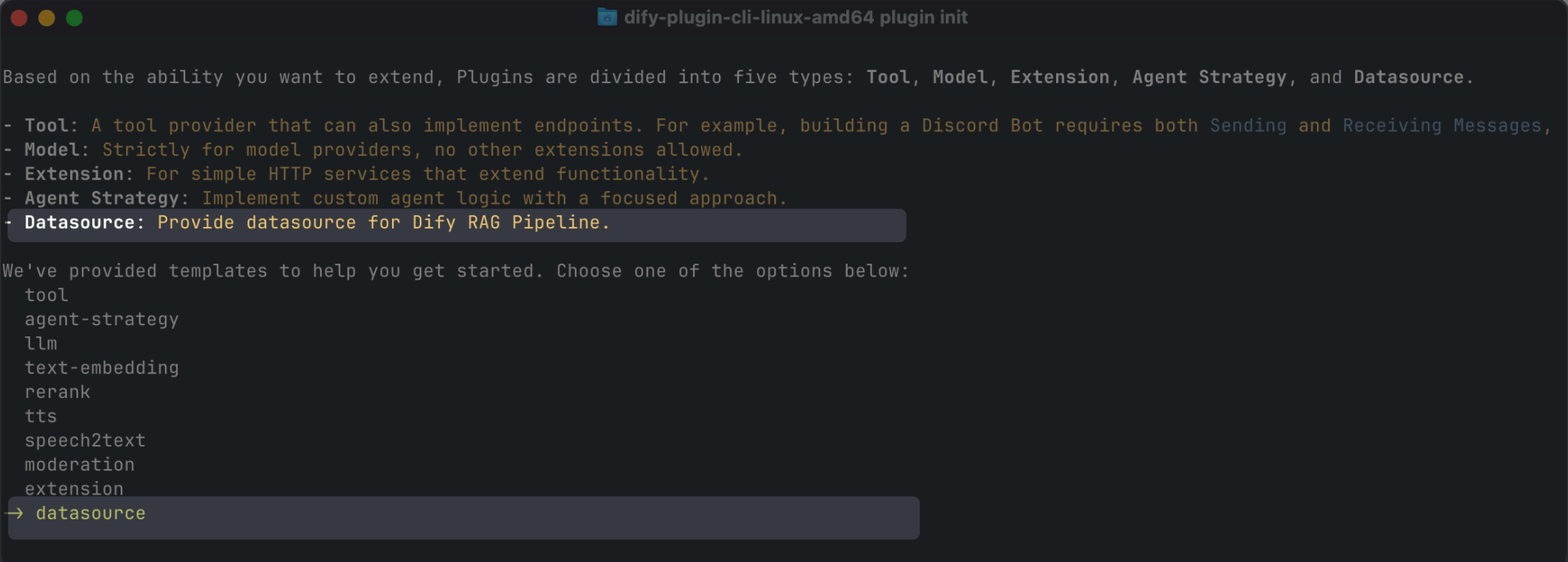
スキャフォールディングコマンドラインツールで `datasource` タイプを選択してデータソースプラグインを作成します。セットアップが完了すると、ツールがプラグインプロジェクトコードを生成します。
```bash theme={null}
dify plugin init
```
## データソースプラグインの開発
### データソースプラグインの作成
スキャフォールディングコマンドラインツールで `datasource` タイプを選択してデータソースプラグインを作成します。セットアップが完了すると、ツールがプラグインプロジェクトコードを生成します。
```bash theme={null}
dify plugin init
```
 通常、データソースプラグインはDifyプラットフォームの他の機能を使用する必要がないため、追加の権限は必要ありません。
#### データソースプラグインの構造
データソースプラグインは3つの主要コンポーネントで構成されています:
* `manifest.yaml`ファイル:プラグインの基本情報を記述します。
* `provider`ディレクトリ:プラグインプロバイダーの説明と認証実装コードを含みます。
* `datasources` ディレクトリ:データソースからデータを取得するための説明とコアロジックを含みます。
```text theme={null}
├── _assets
│ └── icon.svg
├── datasources
│ ├── your_datasource.py
│ └── your_datasource.yaml
├── main.py
├── manifest.yaml
├── PRIVACY.md
├── provider
│ ├── your_datasource.py
│ └── your_datasource.yaml
├── README.md
└── requirements.txt
```
#### 正しいバージョンとタグの設定
* `manifest.yaml` ファイルで、最小サポート Dify バージョンを設定します:
```yaml theme={null}
minimum_dify_version: 1.9.0
```
* 同じファイルで、プラグインを Dify マーケットプレイスのデータソースカテゴリに表示するために以下のタグを追加します:
```yaml theme={null}
tags:
- rag
```
* `requirements.txt` ファイルで、プラグイン SDK バージョンを設定します:
```text theme={null}
dify-plugin>=0.5.0,<0.6.0
```
### データソースプロバイダーの追加
#### プロバイダーYAMLファイルの作成
プロバイダーYAMLファイルの内容は基本的にツールプラグインと同じですが、以下の2点のみ異なります:
```yaml theme={null}
# データソースプラグインのプロバイダータイプを指定:online_drive、online_document、またはwebsite_crawl
provider_type: online_drive # online_document, website_crawl
# データソースを指定
datasources:
- datasources/PluginName.yaml
```
プロバイダー YAML ファイルの作成について詳しくは、[ツールプラグイン:サードパーティサービス認証情報の完成](/ja/develop-plugin/dev-guides-and-walkthroughs/tool-plugin#2-サードパーティサービス認証情報の追加) を参照してください。
データソースプラグインはOAuth 2.0またはAPIキーによる認証をサポートしています。
OAuthの設定については、[ツールプラグインにOAuthサポートを追加する](/ja/develop-plugin/dev-guides-and-walkthroughs/tool-oauth)を参照してください。
#### プロバイダーコードファイルの作成
* API キー認証を使用する場合、プロバイダーコードファイルはツールプラグインと同一です。プロバイダークラスの親クラスを `DatasourceProvider` に変更するだけです。
```python theme={null}
class YourDatasourceProvider(DatasourceProvider):
def _validate_credentials(self, credentials: Mapping[str, Any]) -> None:
try:
"""
IMPLEMENT YOUR VALIDATION HERE
"""
except Exception as e:
raise ToolProviderCredentialValidationError(str(e))
```
* OAuth 認証を使用する場合、データソースプラグインはツールプラグインとわずかに異なります。OAuth でアクセス権限を取得する際、フロントエンドに表示するユーザー名とアバターも返すことができます。そのため、`_oauth_get_credentials` と `_oauth_refresh_credentials` は `name`、`avatar_url`、`expires_at`、`credentials` を含む `DatasourceOAuthCredentials` オブジェクトを返す必要があります。
`DatasourceOAuthCredentials` クラスは以下のように定義されています:
```python theme={null}
class DatasourceOAuthCredentials(BaseModel):
name: str | None = Field(None, description="The name of the OAuth credential")
avatar_url: str | None = Field(None, description="The avatar url of the OAuth")
credentials: Mapping[str, Any] = Field(..., description="The credentials of the OAuth")
expires_at: int | None = Field(
default=-1,
description="""The expiration timestamp (in seconds since Unix epoch, UTC) of the credentials.
Set to -1 or None if the credentials do not expire.""",
)
```
`_oauth_get_authorization_url`、`_oauth_get_credentials`、`_oauth_refresh_credentials`の関数シグネチャは以下の通りです:
```python theme={null}
def _oauth_get_authorization_url(self, redirect_uri: str, system_credentials: Mapping[str, Any]) -> str:
"""
Generate the authorization URL for {{ .PluginName }} OAuth.
"""
try:
"""
IMPLEMENT YOUR AUTHORIZATION URL GENERATION HERE
"""
except Exception as e:
raise DatasourceOAuthError(str(e))
return ""
```
```python theme={null}
def _oauth_get_credentials(
self, redirect_uri: str, system_credentials: Mapping[str, Any], request: Request
) -> DatasourceOAuthCredentials:
"""
Exchange code for access_token.
"""
try:
"""
IMPLEMENT YOUR CREDENTIALS EXCHANGE HERE
"""
except Exception as e:
raise DatasourceOAuthError(str(e))
return DatasourceOAuthCredentials(
name="",
avatar_url="",
expires_at=-1,
credentials={},
)
```
```python theme={null}
def _oauth_refresh_credentials(
self, redirect_uri: str, system_credentials: Mapping[str, Any], credentials: Mapping[str, Any]
) -> DatasourceOAuthCredentials:
"""
Refresh the credentials
"""
return DatasourceOAuthCredentials(
name="",
avatar_url="",
expires_at=-1,
credentials={},
)
```
### データソースの追加
YAMLファイル形式とデータソースコード形式は、3種類のデータソースによって異なります。
#### Webクローラー
WebクローラーデータソースプラグインのプロバイダーYAMLファイルでは、`output_schema`は常に4つのパラメータを返す必要があります:`source_url`、`content`、`title`、`description`。
```yaml theme={null}
output_schema:
type: object
properties:
source_url:
type: string
description: the source url of the website
content:
type: string
description: the content from the website
title:
type: string
description: the title of the website
"description":
type: string
description: the description of the website
```
Web クローラープラグインのメインロジックコードでは、クラスは `WebsiteCrawlDatasource` を継承し、`_get_website_crawl` メソッドを実装する必要があります。`create_crawl_message` メソッドを使用してクロール結果を返します。
複数の Web ページをクロールしてバッチで返すには、`WebSiteInfo.status` を `processing` に設定し、クロールした各バッチのページに対して `create_crawl_message` を呼び出します。すべてのページのクロールが完了した後、`WebSiteInfo.status` を `completed` に設定します。
```python theme={null}
class YourDataSource(WebsiteCrawlDatasource):
def _get_website_crawl(
self, datasource_parameters: dict[str, Any]
) -> Generator[ToolInvokeMessage, None, None]:
crawl_res = WebSiteInfo(web_info_list=[], status="", total=0, completed=0)
crawl_res.status = "processing"
yield self.create_crawl_message(crawl_res)
### your crawl logic
...
crawl_res.status = "completed"
crawl_res.web_info_list = [
WebSiteInfoDetail(
title="",
source_url="",
description="",
content="",
)
]
crawl_res.total = 1
crawl_res.completed = 1
yield self.create_crawl_message(crawl_res)
```
#### オンラインドキュメント
オンラインドキュメントデータソースプラグインの戻り値には、ドキュメントの内容を表す`content`フィールドを少なくとも含める必要があります。例えば:
```yaml theme={null}
output_schema:
type: object
properties:
workspace_id:
type: string
description: workspace id
page_id:
type: string
description: page id
content:
type: string
description: page content
```
オンラインドキュメントプラグインのメインロジックコードでは、クラスは`OnlineDocumentDatasource`を継承し、2つのメソッドを実装する必要があります:`_get_pages`と`_get_content`。
ユーザーがプラグインを実行すると、まず`_get_pages`メソッドを呼び出してドキュメントのリストを取得します。ユーザーがリストからドキュメントを選択した後、`_get_content`メソッドを呼び出してドキュメントのコンテンツを取得します。
```python theme={null}
def _get_pages(self, datasource_parameters: dict[str, Any]) -> DatasourceGetPagesResponse:
# your get pages logic
response = requests.get(url, headers=headers, params=params, timeout=30)
pages = []
for item in response.json().get("results", []):
page = OnlineDocumentPage(
page_name=item.get("title", ""),
page_id=item.get("id", ""),
type="page",
last_edited_time=item.get("version", {}).get("createdAt", ""),
parent_id=item.get("parentId", ""),
page_icon=None,
)
pages.append(page)
online_document_info = OnlineDocumentInfo(
workspace_name=workspace_name,
workspace_icon=workspace_icon,
workspace_id=workspace_id,
pages=[page],
total=pages.length(),
)
return DatasourceGetPagesResponse(result=[online_document_info])
```
```python theme={null}
def _get_content(self, page: GetOnlineDocumentPageContentRequest) -> Generator[DatasourceMessage, None, None]:
# your fetch content logic, example
response = requests.get(url, headers=headers, params=params, timeout=30)
...
yield self.create_variable_message("content", "")
yield self.create_variable_message("page_id", "")
yield self.create_variable_message("workspace_id", "")
```
#### オンラインドライブ
オンラインドライブデータソースプラグインはファイルを返すため、以下の仕様に準拠する必要があります:
```yaml theme={null}
output_schema:
type: object
properties:
file:
$ref: "https://dify.ai/schemas/v1/file.json"
```
オンラインドライブプラグインのメインロジックコードでは、クラスは`OnlineDriveDatasource`を継承し、2つのメソッドを実装する必要があります:`_browse_files`と`_download_file`。
ユーザーがプラグインを実行すると、まず `_browse_files` を呼び出してファイルリストを取得します。この時点で `prefix` は空であり、ルートディレクトリのファイルリストを要求していることを示します。リストにはフォルダとファイルの両方のエントリが含まれます。ユーザーがフォルダを開くと `_browse_files` が再度呼び出され、この時点で `OnlineDriveBrowseFilesRequest` の `prefix` はそのフォルダ内のファイルリストを取得するために使用されるフォルダ ID になります。
ユーザーがファイルを選択した後、プラグインは`_download_file`メソッドとファイルIDを使用してファイルのコンテンツを取得します。`_get_mime_type_from_filename`メソッドを使用してファイルのMIMEタイプを取得でき、パイプラインが異なるファイルタイプを適切に処理できるようになります。
ファイルリストに複数のファイルが含まれている場合、`OnlineDriveFileBucket.is_truncated` を `True` に設定し、`OnlineDriveFileBucket.next_page_parameters` を次のページを取得するために必要なパラメータ(サービスプロバイダーに応じて次のページのリクエスト ID や URL など)に設定できます。
```python theme={null}
def _browse_files(
self, request: OnlineDriveBrowseFilesRequest
) -> OnlineDriveBrowseFilesResponse:
credentials = self.runtime.credentials
bucket_name = request.bucket
prefix = request.prefix or "" # Allow empty prefix for root folder; When you browse the folder, the prefix is the folder id
max_keys = request.max_keys or 10
next_page_parameters = request.next_page_parameters or {}
files = []
files.append(OnlineDriveFile(
id="",
name="",
size=0,
type="folder" # or "file"
))
return OnlineDriveBrowseFilesResponse(result=[
OnlineDriveFileBucket(
bucket="",
files=files,
is_truncated=False,
next_page_parameters={}
)
])
```
```python theme={null}
def _download_file(self, request: OnlineDriveDownloadFileRequest) -> Generator[DatasourceMessage, None, None]:
credentials = self.runtime.credentials
file_id = request.id
file_content = bytes()
file_name = ""
mime_type = self._get_mime_type_from_filename(file_name)
yield self.create_blob_message(file_content, meta={
"file_name": file_name,
"mime_type": mime_type
})
def _get_mime_type_from_filename(self, filename: str) -> str:
"""Determine MIME type from file extension."""
import mimetypes
mime_type, _ = mimetypes.guess_type(filename)
return mime_type or "application/octet-stream"
```
AWS S3のようなストレージサービスでは、`prefix`、`bucket`、`id`変数には特別な用途があり、開発中に必要に応じて柔軟に適用できます:
* `prefix`:ファイルパスのプレフィックスを表します。例えば、`prefix=container1/folder1/`は`container1`バケット内の`folder1`フォルダからファイルまたはファイルリストを取得します。
* `bucket`:ファイルバケットを表します。例えば、`bucket=container1`は`container1`バケット内のファイルまたはファイルリストを取得します。このフィールドは、非標準S3プロトコルドライブでは空白のままにできます。
* `id`:`_download_file`メソッドは`prefix`変数を使用しないため、完全なファイルパスを`id`に含める必要があります。例えば、`id=container1/folder1/file1.txt`は`container1`バケット内の`folder1`フォルダから`file1.txt`ファイルを取得することを示します。
リファレンス実装については、[公式 Google Drive プラグイン](https://github.com/langgenius/dify-official-plugins/blob/main/datasources/google_cloud_storage/datasources/google_cloud_storage.py) と [公式 AWS S3 プラグイン](https://github.com/langgenius/dify-official-plugins/blob/main/datasources/aws_s3_storage/datasources/aws_s3_storage.py) を参照してください。
## プラグインのデバッグ
データソースプラグインは、リモートデバッグとプラグインのローカルインストールという 2 つのデバッグ方法をサポートしています。以下の点に注意してください:
* プラグインがOAuth認証を使用している場合、リモートデバッグの`redirect_uri`はローカルプラグインのものとは異なります。サービスプロバイダーのOAuth Appの関連設定を適宜更新してください。
* データソースプラグインはシングルステップデバッグをサポートしていますが、完全な機能を確保するために、完全なナレッジパイプラインでテストすることをお勧めします。
## 最終チェック
パッケージ化と公開の前に、以下のすべてを完了していることを確認してください:
* 最小サポートDifyバージョンを`1.9.0`に設定。
* SDKバージョンを`dify-plugin>=0.5.0,<0.6.0`に設定。
* `README.md`と`PRIVACY.md`ファイルを作成。
* コードファイルには英語のコンテンツのみを含める。
* デフォルトアイコンをデータソースプロバイダーのロゴに置き換える。
## パッケージ化と公開
プラグインディレクトリで以下のコマンドを実行して`.difypkg`プラグインパッケージを生成します:
```bash theme={null}
dify plugin package . -o your_datasource.difypkg
```
次に、以下のことができます:
* Dify環境にプラグインをインポートして使用する。
* プルリクエストを送信して Dify マーケットプレイスにプラグインを公開する。
プラグイン公開プロセスについては、[プラグインの公開](/ja/develop-plugin/publishing/marketplace-listing/release-overview)を参照してください。
通常、データソースプラグインはDifyプラットフォームの他の機能を使用する必要がないため、追加の権限は必要ありません。
#### データソースプラグインの構造
データソースプラグインは3つの主要コンポーネントで構成されています:
* `manifest.yaml`ファイル:プラグインの基本情報を記述します。
* `provider`ディレクトリ:プラグインプロバイダーの説明と認証実装コードを含みます。
* `datasources` ディレクトリ:データソースからデータを取得するための説明とコアロジックを含みます。
```text theme={null}
├── _assets
│ └── icon.svg
├── datasources
│ ├── your_datasource.py
│ └── your_datasource.yaml
├── main.py
├── manifest.yaml
├── PRIVACY.md
├── provider
│ ├── your_datasource.py
│ └── your_datasource.yaml
├── README.md
└── requirements.txt
```
#### 正しいバージョンとタグの設定
* `manifest.yaml` ファイルで、最小サポート Dify バージョンを設定します:
```yaml theme={null}
minimum_dify_version: 1.9.0
```
* 同じファイルで、プラグインを Dify マーケットプレイスのデータソースカテゴリに表示するために以下のタグを追加します:
```yaml theme={null}
tags:
- rag
```
* `requirements.txt` ファイルで、プラグイン SDK バージョンを設定します:
```text theme={null}
dify-plugin>=0.5.0,<0.6.0
```
### データソースプロバイダーの追加
#### プロバイダーYAMLファイルの作成
プロバイダーYAMLファイルの内容は基本的にツールプラグインと同じですが、以下の2点のみ異なります:
```yaml theme={null}
# データソースプラグインのプロバイダータイプを指定:online_drive、online_document、またはwebsite_crawl
provider_type: online_drive # online_document, website_crawl
# データソースを指定
datasources:
- datasources/PluginName.yaml
```
プロバイダー YAML ファイルの作成について詳しくは、[ツールプラグイン:サードパーティサービス認証情報の完成](/ja/develop-plugin/dev-guides-and-walkthroughs/tool-plugin#2-サードパーティサービス認証情報の追加) を参照してください。
データソースプラグインはOAuth 2.0またはAPIキーによる認証をサポートしています。
OAuthの設定については、[ツールプラグインにOAuthサポートを追加する](/ja/develop-plugin/dev-guides-and-walkthroughs/tool-oauth)を参照してください。
#### プロバイダーコードファイルの作成
* API キー認証を使用する場合、プロバイダーコードファイルはツールプラグインと同一です。プロバイダークラスの親クラスを `DatasourceProvider` に変更するだけです。
```python theme={null}
class YourDatasourceProvider(DatasourceProvider):
def _validate_credentials(self, credentials: Mapping[str, Any]) -> None:
try:
"""
IMPLEMENT YOUR VALIDATION HERE
"""
except Exception as e:
raise ToolProviderCredentialValidationError(str(e))
```
* OAuth 認証を使用する場合、データソースプラグインはツールプラグインとわずかに異なります。OAuth でアクセス権限を取得する際、フロントエンドに表示するユーザー名とアバターも返すことができます。そのため、`_oauth_get_credentials` と `_oauth_refresh_credentials` は `name`、`avatar_url`、`expires_at`、`credentials` を含む `DatasourceOAuthCredentials` オブジェクトを返す必要があります。
`DatasourceOAuthCredentials` クラスは以下のように定義されています:
```python theme={null}
class DatasourceOAuthCredentials(BaseModel):
name: str | None = Field(None, description="The name of the OAuth credential")
avatar_url: str | None = Field(None, description="The avatar url of the OAuth")
credentials: Mapping[str, Any] = Field(..., description="The credentials of the OAuth")
expires_at: int | None = Field(
default=-1,
description="""The expiration timestamp (in seconds since Unix epoch, UTC) of the credentials.
Set to -1 or None if the credentials do not expire.""",
)
```
`_oauth_get_authorization_url`、`_oauth_get_credentials`、`_oauth_refresh_credentials`の関数シグネチャは以下の通りです:
```python theme={null}
def _oauth_get_authorization_url(self, redirect_uri: str, system_credentials: Mapping[str, Any]) -> str:
"""
Generate the authorization URL for {{ .PluginName }} OAuth.
"""
try:
"""
IMPLEMENT YOUR AUTHORIZATION URL GENERATION HERE
"""
except Exception as e:
raise DatasourceOAuthError(str(e))
return ""
```
```python theme={null}
def _oauth_get_credentials(
self, redirect_uri: str, system_credentials: Mapping[str, Any], request: Request
) -> DatasourceOAuthCredentials:
"""
Exchange code for access_token.
"""
try:
"""
IMPLEMENT YOUR CREDENTIALS EXCHANGE HERE
"""
except Exception as e:
raise DatasourceOAuthError(str(e))
return DatasourceOAuthCredentials(
name="",
avatar_url="",
expires_at=-1,
credentials={},
)
```
```python theme={null}
def _oauth_refresh_credentials(
self, redirect_uri: str, system_credentials: Mapping[str, Any], credentials: Mapping[str, Any]
) -> DatasourceOAuthCredentials:
"""
Refresh the credentials
"""
return DatasourceOAuthCredentials(
name="",
avatar_url="",
expires_at=-1,
credentials={},
)
```
### データソースの追加
YAMLファイル形式とデータソースコード形式は、3種類のデータソースによって異なります。
#### Webクローラー
WebクローラーデータソースプラグインのプロバイダーYAMLファイルでは、`output_schema`は常に4つのパラメータを返す必要があります:`source_url`、`content`、`title`、`description`。
```yaml theme={null}
output_schema:
type: object
properties:
source_url:
type: string
description: the source url of the website
content:
type: string
description: the content from the website
title:
type: string
description: the title of the website
"description":
type: string
description: the description of the website
```
Web クローラープラグインのメインロジックコードでは、クラスは `WebsiteCrawlDatasource` を継承し、`_get_website_crawl` メソッドを実装する必要があります。`create_crawl_message` メソッドを使用してクロール結果を返します。
複数の Web ページをクロールしてバッチで返すには、`WebSiteInfo.status` を `processing` に設定し、クロールした各バッチのページに対して `create_crawl_message` を呼び出します。すべてのページのクロールが完了した後、`WebSiteInfo.status` を `completed` に設定します。
```python theme={null}
class YourDataSource(WebsiteCrawlDatasource):
def _get_website_crawl(
self, datasource_parameters: dict[str, Any]
) -> Generator[ToolInvokeMessage, None, None]:
crawl_res = WebSiteInfo(web_info_list=[], status="", total=0, completed=0)
crawl_res.status = "processing"
yield self.create_crawl_message(crawl_res)
### your crawl logic
...
crawl_res.status = "completed"
crawl_res.web_info_list = [
WebSiteInfoDetail(
title="",
source_url="",
description="",
content="",
)
]
crawl_res.total = 1
crawl_res.completed = 1
yield self.create_crawl_message(crawl_res)
```
#### オンラインドキュメント
オンラインドキュメントデータソースプラグインの戻り値には、ドキュメントの内容を表す`content`フィールドを少なくとも含める必要があります。例えば:
```yaml theme={null}
output_schema:
type: object
properties:
workspace_id:
type: string
description: workspace id
page_id:
type: string
description: page id
content:
type: string
description: page content
```
オンラインドキュメントプラグインのメインロジックコードでは、クラスは`OnlineDocumentDatasource`を継承し、2つのメソッドを実装する必要があります:`_get_pages`と`_get_content`。
ユーザーがプラグインを実行すると、まず`_get_pages`メソッドを呼び出してドキュメントのリストを取得します。ユーザーがリストからドキュメントを選択した後、`_get_content`メソッドを呼び出してドキュメントのコンテンツを取得します。
```python theme={null}
def _get_pages(self, datasource_parameters: dict[str, Any]) -> DatasourceGetPagesResponse:
# your get pages logic
response = requests.get(url, headers=headers, params=params, timeout=30)
pages = []
for item in response.json().get("results", []):
page = OnlineDocumentPage(
page_name=item.get("title", ""),
page_id=item.get("id", ""),
type="page",
last_edited_time=item.get("version", {}).get("createdAt", ""),
parent_id=item.get("parentId", ""),
page_icon=None,
)
pages.append(page)
online_document_info = OnlineDocumentInfo(
workspace_name=workspace_name,
workspace_icon=workspace_icon,
workspace_id=workspace_id,
pages=[page],
total=pages.length(),
)
return DatasourceGetPagesResponse(result=[online_document_info])
```
```python theme={null}
def _get_content(self, page: GetOnlineDocumentPageContentRequest) -> Generator[DatasourceMessage, None, None]:
# your fetch content logic, example
response = requests.get(url, headers=headers, params=params, timeout=30)
...
yield self.create_variable_message("content", "")
yield self.create_variable_message("page_id", "")
yield self.create_variable_message("workspace_id", "")
```
#### オンラインドライブ
オンラインドライブデータソースプラグインはファイルを返すため、以下の仕様に準拠する必要があります:
```yaml theme={null}
output_schema:
type: object
properties:
file:
$ref: "https://dify.ai/schemas/v1/file.json"
```
オンラインドライブプラグインのメインロジックコードでは、クラスは`OnlineDriveDatasource`を継承し、2つのメソッドを実装する必要があります:`_browse_files`と`_download_file`。
ユーザーがプラグインを実行すると、まず `_browse_files` を呼び出してファイルリストを取得します。この時点で `prefix` は空であり、ルートディレクトリのファイルリストを要求していることを示します。リストにはフォルダとファイルの両方のエントリが含まれます。ユーザーがフォルダを開くと `_browse_files` が再度呼び出され、この時点で `OnlineDriveBrowseFilesRequest` の `prefix` はそのフォルダ内のファイルリストを取得するために使用されるフォルダ ID になります。
ユーザーがファイルを選択した後、プラグインは`_download_file`メソッドとファイルIDを使用してファイルのコンテンツを取得します。`_get_mime_type_from_filename`メソッドを使用してファイルのMIMEタイプを取得でき、パイプラインが異なるファイルタイプを適切に処理できるようになります。
ファイルリストに複数のファイルが含まれている場合、`OnlineDriveFileBucket.is_truncated` を `True` に設定し、`OnlineDriveFileBucket.next_page_parameters` を次のページを取得するために必要なパラメータ(サービスプロバイダーに応じて次のページのリクエスト ID や URL など)に設定できます。
```python theme={null}
def _browse_files(
self, request: OnlineDriveBrowseFilesRequest
) -> OnlineDriveBrowseFilesResponse:
credentials = self.runtime.credentials
bucket_name = request.bucket
prefix = request.prefix or "" # Allow empty prefix for root folder; When you browse the folder, the prefix is the folder id
max_keys = request.max_keys or 10
next_page_parameters = request.next_page_parameters or {}
files = []
files.append(OnlineDriveFile(
id="",
name="",
size=0,
type="folder" # or "file"
))
return OnlineDriveBrowseFilesResponse(result=[
OnlineDriveFileBucket(
bucket="",
files=files,
is_truncated=False,
next_page_parameters={}
)
])
```
```python theme={null}
def _download_file(self, request: OnlineDriveDownloadFileRequest) -> Generator[DatasourceMessage, None, None]:
credentials = self.runtime.credentials
file_id = request.id
file_content = bytes()
file_name = ""
mime_type = self._get_mime_type_from_filename(file_name)
yield self.create_blob_message(file_content, meta={
"file_name": file_name,
"mime_type": mime_type
})
def _get_mime_type_from_filename(self, filename: str) -> str:
"""Determine MIME type from file extension."""
import mimetypes
mime_type, _ = mimetypes.guess_type(filename)
return mime_type or "application/octet-stream"
```
AWS S3のようなストレージサービスでは、`prefix`、`bucket`、`id`変数には特別な用途があり、開発中に必要に応じて柔軟に適用できます:
* `prefix`:ファイルパスのプレフィックスを表します。例えば、`prefix=container1/folder1/`は`container1`バケット内の`folder1`フォルダからファイルまたはファイルリストを取得します。
* `bucket`:ファイルバケットを表します。例えば、`bucket=container1`は`container1`バケット内のファイルまたはファイルリストを取得します。このフィールドは、非標準S3プロトコルドライブでは空白のままにできます。
* `id`:`_download_file`メソッドは`prefix`変数を使用しないため、完全なファイルパスを`id`に含める必要があります。例えば、`id=container1/folder1/file1.txt`は`container1`バケット内の`folder1`フォルダから`file1.txt`ファイルを取得することを示します。
リファレンス実装については、[公式 Google Drive プラグイン](https://github.com/langgenius/dify-official-plugins/blob/main/datasources/google_cloud_storage/datasources/google_cloud_storage.py) と [公式 AWS S3 プラグイン](https://github.com/langgenius/dify-official-plugins/blob/main/datasources/aws_s3_storage/datasources/aws_s3_storage.py) を参照してください。
## プラグインのデバッグ
データソースプラグインは、リモートデバッグとプラグインのローカルインストールという 2 つのデバッグ方法をサポートしています。以下の点に注意してください:
* プラグインがOAuth認証を使用している場合、リモートデバッグの`redirect_uri`はローカルプラグインのものとは異なります。サービスプロバイダーのOAuth Appの関連設定を適宜更新してください。
* データソースプラグインはシングルステップデバッグをサポートしていますが、完全な機能を確保するために、完全なナレッジパイプラインでテストすることをお勧めします。
## 最終チェック
パッケージ化と公開の前に、以下のすべてを完了していることを確認してください:
* 最小サポートDifyバージョンを`1.9.0`に設定。
* SDKバージョンを`dify-plugin>=0.5.0,<0.6.0`に設定。
* `README.md`と`PRIVACY.md`ファイルを作成。
* コードファイルには英語のコンテンツのみを含める。
* デフォルトアイコンをデータソースプロバイダーのロゴに置き換える。
## パッケージ化と公開
プラグインディレクトリで以下のコマンドを実行して`.difypkg`プラグインパッケージを生成します:
```bash theme={null}
dify plugin package . -o your_datasource.difypkg
```
次に、以下のことができます:
* Dify環境にプラグインをインポートして使用する。
* プルリクエストを送信して Dify マーケットプレイスにプラグインを公開する。
プラグイン公開プロセスについては、[プラグインの公開](/ja/develop-plugin/publishing/marketplace-listing/release-overview)を参照してください。